
First, Why Does 50KB Even Exist in 2026?
Honestly, it's an ancient standard that never got updated. Government portals, university admission forms, bank KYC pages — a lot of these systems were built 15 or 20 years ago when storage was expensive and internet speeds were slow. The 50KB limit made sense then. Now your phone shoots photos at 8MB and nobody updated the form validation.
It's not just government stuff either. Job portals, scholarship applications, some forum profile uploads — they all still carry this limit around like old luggage.
Here's the thing most people don't realize: a 50KB image, if done right, looks completely fine on screen. You're not printing it. You're uploading it to a form that'll display it at maybe 200×200 pixels. Sharp enough is sharp enough.
Why Your "Compressed" Image Still Looks Terrible
Before I get into the tools, I want to address something. I've seen people compress an image, get it under 50KB, and then complain it looks like a JPEG from 2003.
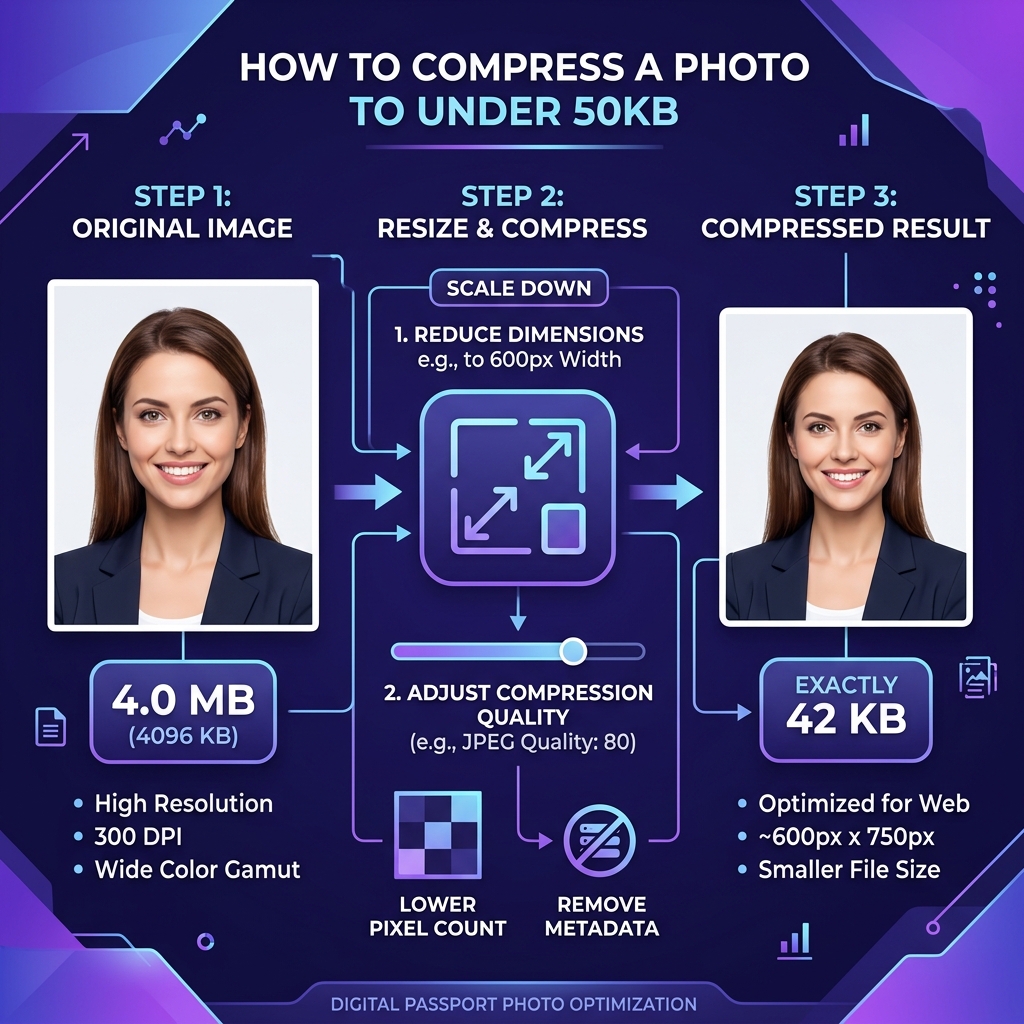
Nine times out of ten, the problem isn't the compression — it's that they skipped a step. They tried to compress a 4000×3000 pixel photo into 50KB without resizing it first. That's like trying to stuff a sleeping bag into a pocket. Something has to give, and what gives is quality.
The actual process should be two steps: Resize first. Compress second.
A 500×500 pixel image at moderate compression will look sharp at 40KB. A 3000×3000 pixel image at brutal compression might technically hit 48KB but look like a smeared watercolor painting. If there's one thing you take from this article, that's it.
The Tools I've Actually Used (With Honest Opinions)
squoosh.app is made by Google and it's completely free. No sign-up, no watermarks, nothing. You drag your image in, and it shows you a live before/after preview split down the middle. As you drag the quality slider, you watch the file size number change in real time. That real-time feedback is why I keep coming back to it. You can see exactly when the image starts looking bad and stop just before that point.
One specific thing worth knowing: in Squoosh, change the codec from the default "Browser JPEG" to MozJPEG. It's in the dropdown on the right side. MozJPEG is a smarter compression algorithm — at the same quality setting, it produces a noticeably smaller file. I've had images go from 68KB down to 41KB just by switching the codec, no other changes.
Also — and this is a big deal for privacy-conscious people — Squoosh processes everything in your browser. Your image never leaves your device. For passport photos, ID cards, anything personal, that matters.
CompressJPEG and CompressPNG (compressjpeg.com and compresspng.com) are what I'd recommend to someone who just wants a fast answer without any settings to fiddle with. Upload, wait five seconds, download. Done. They're not as precise as Squoosh and you can't target a specific file size, but for a quick job they work fine. You can upload up to 20 images at once.
tinypng.com handles JPEGs too. For PNG files specifically, it's genuinely impressive. I've had PNG files drop by 65% without any visible quality loss. The trick with PNGs is that they're often much larger than they need to be because they store color data inefficiently. TinyPNG strips out a lot of that redundant data. If you're working with a logo, a screenshot, or anything with a transparent background, start here. For regular photos though, I'd still go with Squoosh.
resizepixel.com is the one I go to when I specifically need to land at or under a target size. It has a field where you can literally type "50" into a KB box and it'll do its best to get there. It's not magic — if you feed it a massive image, the result might still look rough. But if your image is already a reasonable size and you just need to nail a specific limit, this is faster than manually tweaking sliders.
iloveimg.com does a bit of everything — compression, resizing, format conversion, cropping. It's a good one-stop option if you need to do multiple things to the same image. The interface is clean and beginner-friendly. I find it slightly slower than the dedicated tools above, and the compression isn't always as tight. But if you need to both resize and compress in one place without wanting to switch between tabs, it works well.
A Real Walkthrough: Getting a 2MB Photo Under 50KB
Let's walk through what I actually do, step by step, using Squoosh.
Go to squoosh.app and drag your photo onto the page. On the right side of the screen, you'll see the "Compress" panel. First thing — look at the "Resize" section right above it. Click the lock icon to maintain aspect ratio, then set the width to something like 500 or 600 pixels. For most form uploads, that's more than enough.
Now in the compress section, change the codec to MozJPEG from the dropdown. You'll see a quality slider, currently probably at 75. Look at the file size shown below — if it's still above 50KB, start dragging that quality slider left. Watch both the preview image and the file size as you go.
Most photos hit 40–48KB somewhere around quality 55–65. That's usually still pretty good looking for an on-screen image. Once you're happy, hit the download button at the bottom. The whole process takes about two minutes once you've done it once.
Format Matters More Than People Realize
If you're starting with a PNG and wondering why it's so hard to get under 50KB — that's your problem right there. PNGs are lossless, meaning they store every pixel exactly. Great for quality, terrible for file size.
Converting a PNG to JPEG before compressing can cut the file size by 50–70% immediately. Squoosh does this conversion as part of the same process — just select MozJPEG as the output codec and it'll save as a JPEG regardless of what you uploaded.
The exception is if your image has a transparent background — a logo on a clear background, for example. JPEG doesn't support transparency, so converting it will fill the transparent areas with white. In that case, stick with PNG and use TinyPNG to compress.
WebP is another option worth knowing about. It's a newer format from Google that gives even better compression than JPEG. Squoosh can export WebP. The only catch is that some older upload portals won't accept it — they specifically want JPG or PNG. Try it if you can, but have a JPEG backup.
A Few Things That Will Make Your Life Harder (Avoid These)
Don't re-save a JPEG multiple times. Every time you open a JPEG and save it again, it re-compresses and loses more quality. Work from the original file every time, not from a previously compressed copy.
Don't take a screenshot of a photo. Screenshots save as PNG and often end up larger than the original. This one confuses a lot of people — they'll screenshot an image and then wonder why the file is bigger.
Don't trust every tool you find on the first Google result. Some of them have malware-adjacent download buttons, some produce genuinely terrible quality, and a few upload your image to sketchy servers. I'd stick to the ones I mentioned above.
Expert Optimization Tip
"Set your target weight 2KB to 5KB below the maximum portal limit (e.g. 45KB for a 50KB limit) to avoid minor estimation discrepancies across different portal checking algorithms."